> For the complete documentation index, see [llms.txt](https://docs.blackbox.chat/blackbox-ai-1/llms.txt). Markdown versions of documentation pages are available by appending `.md` to page URLs; this page is available as [Markdown](https://docs.blackbox.chat/blackbox-ai-1/blackbox-ai/new-release-gpus-in-your-ide.md).
# New Release - GPUs in your IDE
## **Blackbox's Latest Update: Affordable High-End GPU Access**
Planning to try out the latest update from Blackbox? Here’s what you need to know:
* **Affordable GPU Power**: Access high-end GPUs without the hefty price tag. Perfect for those requiring substantial computing power.
* **Pricing**: Just $0.75/hour - cheaper than most hourly expenses!
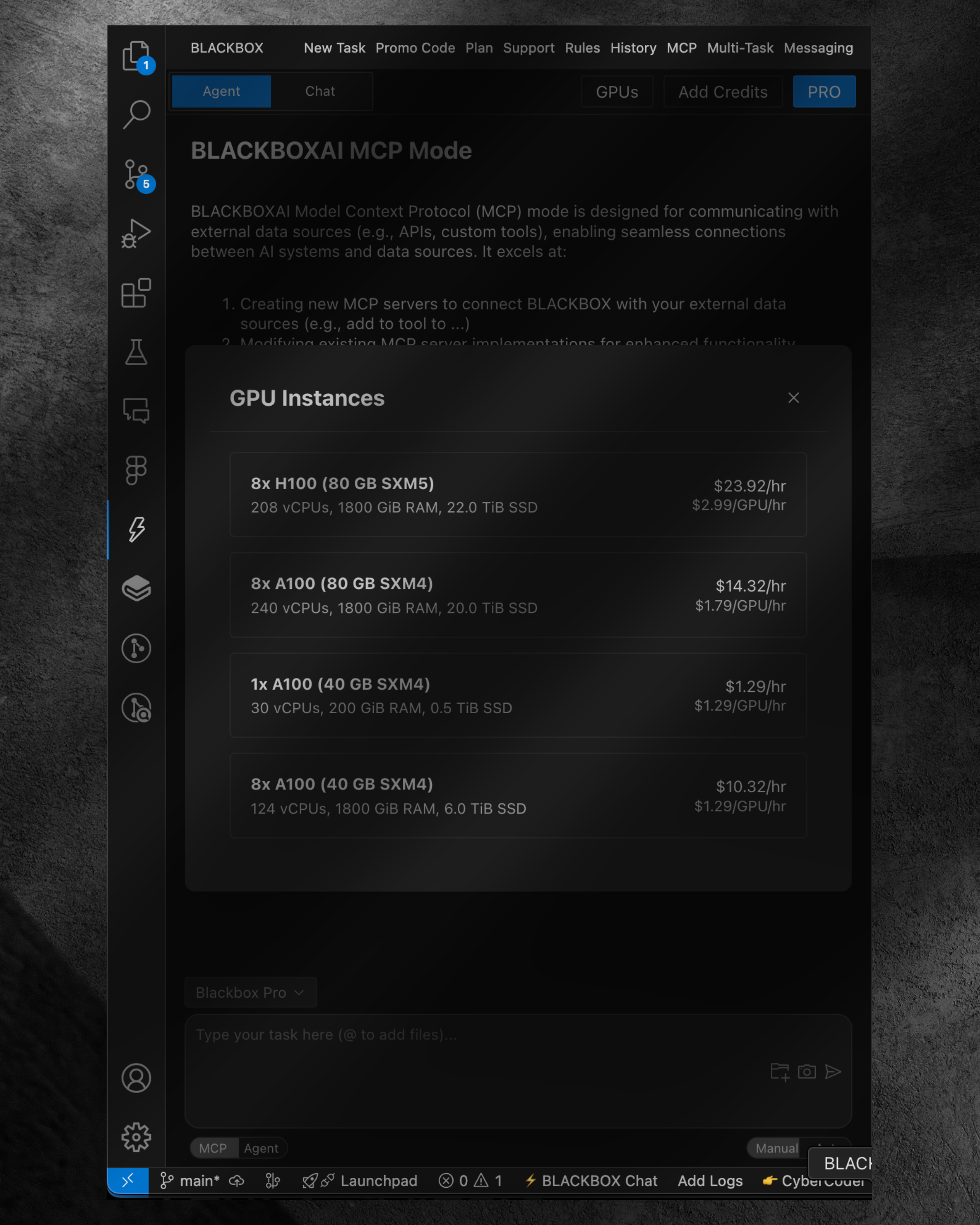
* **Available GPUs**: Access powerful A100s and H100s.
* **Flexibility**: Launch multiple GPUs as needed, subject to availability.
* **Ease of Use**: Directly run tasks on GPUs via an extension or your IDE.
Stay tuned for upcoming demos showcasing the agent’s capabilities on GPUs!
### How to get access:
To install the Blackbox AI extension in Visual Studio Code, follow these steps:
1. Open your VSCode or go here:
2. Open the Extensions view by clicking the Extensions icon in the Activity Bar or using the shortcut `Ctrl+Shift+X` (Windows/Linux) or `Cmd+Shift+X` (macOS).
3. In the search bar, type "Blackbox AI" and find the extension in the results.
4. Click "Install" to add the extension to your environment.
5. After installation, a GPU icon will appear in the top right. Click on it to see available GPUs like A100 and H100.
6. Select a GPU and click "Start" to begin, enabling high-performance computing directly within your IDE
{% embed url="" %}